


Renew - Old Photo Restoration
4.61.76K Reviews
App Specs
- Version
- 1.1.22
- Updated On
- License
- Free
- Downloads
- 1,000,000+
- Developer
- Olena Dorohan
- Categories
- Photography
- Platform
- Android
Screenshots
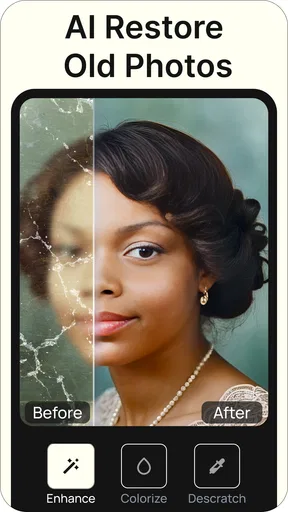
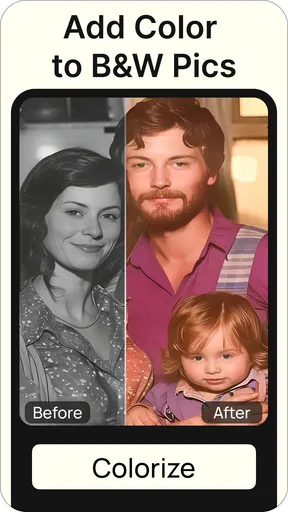
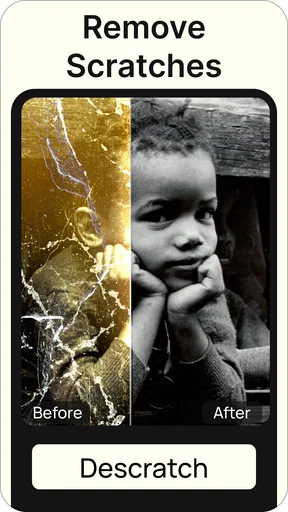
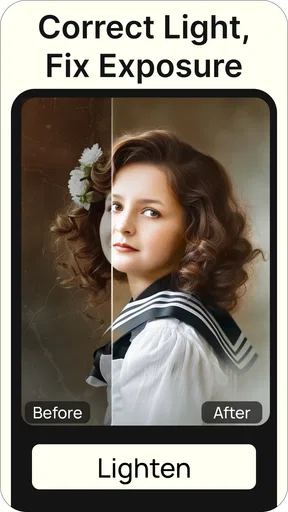
 Analysis by AppCompare
When I decide whether to restore an old picture with an app, I start with the photo itself: is the damage mostly fading and low contrast, or are there tears, missing corners, and details that no software can genuinely recover? I also think about what I want at the end. A quick, shareable improvement is a different goal from a careful archival scan, and that distinction matters when choosing a tool.
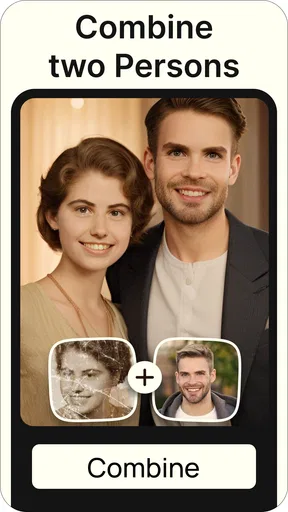
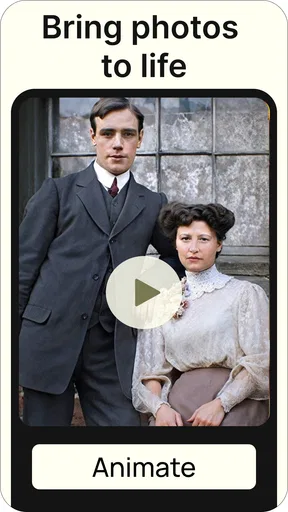
Renew - Old Photo Restoration is a photography app by Olena Dorohan, built around AI-assisted photo repair and creative treatments such as colorization, combining images, and animation. It is free to install, rated for Everyone, and currently at version 1.1.21, with a minimum operating system requirement of 7.0. Its average rating is 4.6 from around 15,000 ratings, and it has been installed over 500,000 times. Those figures suggest that it has found an audience, but the real test is whether its approach suits the pictures you actually have.
Choose the right photo before you begin
I would begin with a clear, reasonably flat image rather than the most damaged photograph in a family album. If you can, scan the print or photograph it in even light, keep the camera parallel to the surface, and avoid glare from glossy paper. This small preparation step can make a bigger difference than repeatedly changing enhancement settings: the app can work with image information that is present, but it cannot reliably recover every detail hidden by blur, a fold, or a missing section.
A useful first project is a portrait with faded tones, mild discoloration, or a few small marks. Those are the kinds of problems where automatic improvement has room to help without needing to invent a large amount of missing content. Keep an untouched copy of the original before editing. That gives you a fair comparison, and it means you can return to the source if a restored face looks too smooth or the colors feel unlike your memory of the photograph.
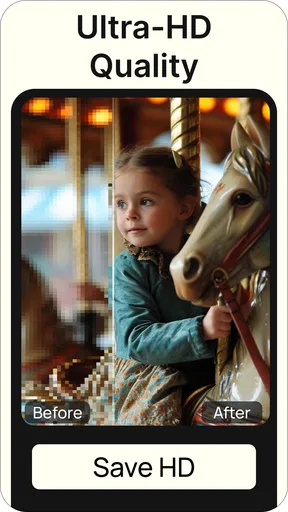
I also suggest judging a result at two sizes. A restored picture can look pleasing on a phone screen but reveal artificial texture or softened facial details when enlarged. If you plan to print it or use it in a family archive, zoom in before deciding that the first pass is finished. For a quick message to relatives, a natural-looking overall improvement may be more important than perfect detail at close range.
Getting Started with Renew
Jumping into Renew - Old Photo Restoration is a breeze. The app has a clean, intuitive interface that’s easy to navigate, even if you’re not particularly tech-savvy. Just fire it up, and you’re greeted with a straightforward menu that guides you through the restoration process. All you need is a photo to start with. I decided to use an old family portrait from the 80s—complete with faded colors and a few unintentional creases.
The Restoration Process
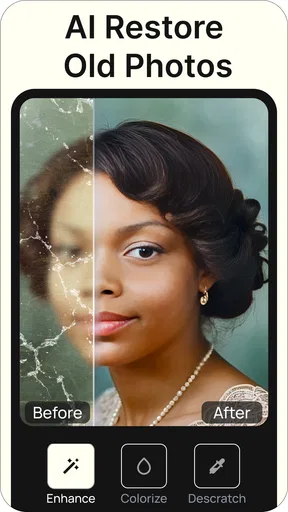
The app offers several features to enhance and restore your photos. First up, it analyzes the image, identifying areas that need repair. The AI-driven technology is pretty impressive, automatically correcting issues such as exposure, color balance, and even removing blemishes. It’s almost magical how it can detect what a photo should have looked like back in its heyday.
Worth Reading Before You Choose

EA SPORTS FC Mobile 26 Is a Bigger Football Game, but It Takes Time

Flipboard Shows What News Apps Must Do Beyond the Feed

Switching to Android Auto Means Rethinking Your Driving Routine

Google Calendar Makes a Crowded Week Easier to Manage

Ludo King Makes the Most of the Minutes Between Plans

Baby Panda World Brings Quick Play to Modern Phones, but Its Game Library Feels Busy
Once the app completes its initial analysis, you can choose from a variety of filters and manual adjustments to fine-tune the result. I found the filters particularly useful for adding a touch of warmth that seemed to bring the photo even closer to its original vibrancy. For those who enjoy a hands-on approach, the manual adjustments let you tweak aspects like sharpness and contrast to your heart’s content.
When its automatic touch helps—and when it doesn’t
The strongest reason to try this app is convenience. Instead of starting with a complicated editor and learning a set of repair tools, I can let the automatic pass handle a first round of cleanup, then decide whether the image needs a lighter touch. That is especially useful when I have several old pictures to review and want a quick way to identify which ones are worth spending more time on.
There is a trade-off with any AI restoration: an image can become cleaner while also becoming less faithful. Fine lines, hair, and subtle facial texture are easy places to notice over-processing. I would compare the enhanced result with the original before saving a version as the definitive family copy, and reduce the effect or adjust the image if the person starts to look unlike themselves. For historical or documentary pictures, restraint is usually more valuable than dramatic polish.
Colorizing a monochrome photograph is best treated as an interpretation, not a recovery of certain historical colors. It can make an image easier to imagine as a living scene, but clothing, skin, and background shades may be plausible rather than known. I would keep the original black-and-white version alongside the colorized one, particularly when sharing a photograph whose details matter to the family story.
Performance and Usability
One thing that stood out to me while using Renew was its speed. The app swiftly processed my image, and the entire restoration took only a few minutes. The output was stunning, transforming my faded family photo into a vibrant piece that looked as though it had been captured only yesterday.
Usability-wise, the app is a winner. It’s designed for anyone to pick up and use without any hassle. Whether you’re a tech enthusiast or someone who just wants to preserve memories, Renew makes the restoration process straightforward and fun.
A practical family-photo workflow
Imagine finding a faded picture of a grandparent while sorting a box of prints before a family visit. I would photograph or scan a few candidates, begin with the clearest one, and use the automatic restoration as a preview rather than treating it as an unquestionable final. Then I would compare the result with the source, make modest manual changes if needed, and share both versions with relatives. That gives everyone a chance to say whether the color and overall appearance feel right, instead of presenting an AI interpretation as a precise record.
For a batch of photographs, work in small groups and keep filenames or album notes that explain who and what appears in each image. Restoring a photo can separate it from the context that makes it meaningful; a simple note about the occasion or people pictured is often more useful to future family members than another round of sharpening. I would also check that the saved image is the version I intended before moving on, especially when making both a restrained restoration and a more stylized one.
Sharing and Saving Your Restored Photos
After you’ve finished restoring your photos, the app makes it easy to share them. With a simple tap, you can send your newly enhanced images directly to social media or save them to your device. I found this feature particularly handy for sharing my restored photos with family members who live far away.
The app also offers the option to save your progress, meaning you can return to a project if you need to take a break. This is a thoughtful touch, especially for those working on multiple images or intricate restorations.
How it compares with other ways to restore a picture
Compared with a general-purpose photo editor, Renew is aimed at people who want restoration and creative AI treatments without building an edit from scratch. A conventional editor may be a better fit if you want detailed control over individual marks, layers, or a specific color correction. Renew’s appeal is the shorter route from an old picture to a usable result, while manual tools can offer more deliberate control at the cost of time and learning.
Compared with professional scanning and restoration, an app is the more convenient option for a quick personal project, not a replacement for specialist work on a unique or badly damaged print. If the only copy is fragile, badly torn, or historically important, I would preserve it carefully and consider a professional scan or restoration rather than relying on an automated edit as the sole record. For ordinary faded family snapshots, though, an accessible phone-based workflow can be a practical starting point.
The app is free to install, with in-app purchases ranging from $9.99 to $49.99 per item. I would try it on a picture that is representative of the work I need before paying for anything: a mild fade, a face with visible detail, and a more challenging image can produce very different impressions of an AI tool. The right choice depends on whether the output quality and available workflow justify the cost for your own project, not simply on how impressive one sample looks.
What to expect before committing time or money
Renew is a sensible choice if you want an approachable way to revive personal photographs, experiment with color, or prepare a cleaned-up image to share. Its combination of automatic processing and manual adjustments gives beginners a clear entry point while leaving some room to steer the look. The app is also suited to someone who would rather restore a handful of meaningful images than learn a full desktop editing workflow.
I would be more cautious if you need exact historical color, pixel-level repair, or consistent results across a large archive. AI can make a picture more legible, but it may also smooth or reinterpret details; for a large collection, it is worth checking several examples before settling into a paid workflow. A person who already enjoys meticulous editing may prefer tools designed for direct, fine-grained control, while someone seeking a faithful preservation copy should keep an unedited scan regardless of which restoration method they use.
Final Thoughts
All in all, Renew - Old Photo Restoration is a fantastic app for anyone looking to revive their old photos. It’s user-friendly, efficient, and the results are genuinely impressive. Whether you’ve got a stack of family photos or just a few precious memories you’d like to preserve, this app is definitely worth trying out.
With its combination of advanced technology and ease of use, Renew doesn’t just restore photos—it restores memories. So, if you’ve got some old gems lying around, why not give them a new lease on life? Trust me, you won’t be disappointed!
Pros
- Restores photos with impressive clarity.
- User-friendly interface
- easy to navigate.
- Fast processing with minimal wait time.
- Supports various photo formats.
- Offers batch processing for multiple photos.
Cons
- Limited advanced editing tools.
- Occasional glitches with large files.
- Subscription required for full features.
- Watermark on free version outputs.
- No offline functionality available.
FAQs for Renew - Old Photo Restoration
What is Renew - Old Photo Restoration and how does it work?
Renew - Old Photo Restoration is an app designed to breathe new life into your old and damaged photographs. Using advanced AI technology, the app identifies and repairs imperfections such as scratches, tears, and fading. Simply upload your photo, and the app processes it automatically, providing you with a restored version that retains the original essence.
Is Renew - Old Photo Restoration free to use?
Renew offers both free and premium versions. The free version allows basic restoration with watermarked results, while the premium version offers full restoration capabilities without watermarks, along with additional features like colorization. Users can choose a subscription plan that best suits their needs, ensuring flexibility and value.
How user-friendly is the Renew app for beginners?
Renew is designed with a user-friendly interface, making it accessible for all skill levels. The intuitive design guides users through the restoration process with clear instructions and simple navigation. Even those without technical expertise can easily restore their cherished memories with just a few taps.
What formats does Renew support for photo uploads?
Renew supports a variety of image formats, including JPEG, PNG, and TIFF, ensuring compatibility with most digital and scanned photos. This flexibility allows users to upload photos directly from their device’s gallery or capture them using the in-app camera feature, making the process seamless and straightforward.
Can I share restored photos directly from the app?
Yes, Renew allows users to easily share their restored photos directly from the app to social media platforms or via email. The app includes built-in sharing options, enabling you to showcase your beautifully restored memories with friends and family instantly, enhancing your experience and convenience.


